Step 4 · Create an OAuth client ID
This step issues the identity Kura-chan presents during OAuth — a Client ID and a Client Secret. You’ll paste them into the dashboard in Step 5. About 2 minutes.
Why “Desktop app”?
Section titled “Why “Desktop app”?”Kura-chan runs as a desktop app on your NAS / Mac / Linux server. In Google Cloud’s OAuth client types, that matches Desktop app.
Benefits of Desktop app:
- Google auto-allows
http://localhost:<any port>redirects without manual registration - Unlike Web application clients, you don’t have to re-register the redirect URI every time
-
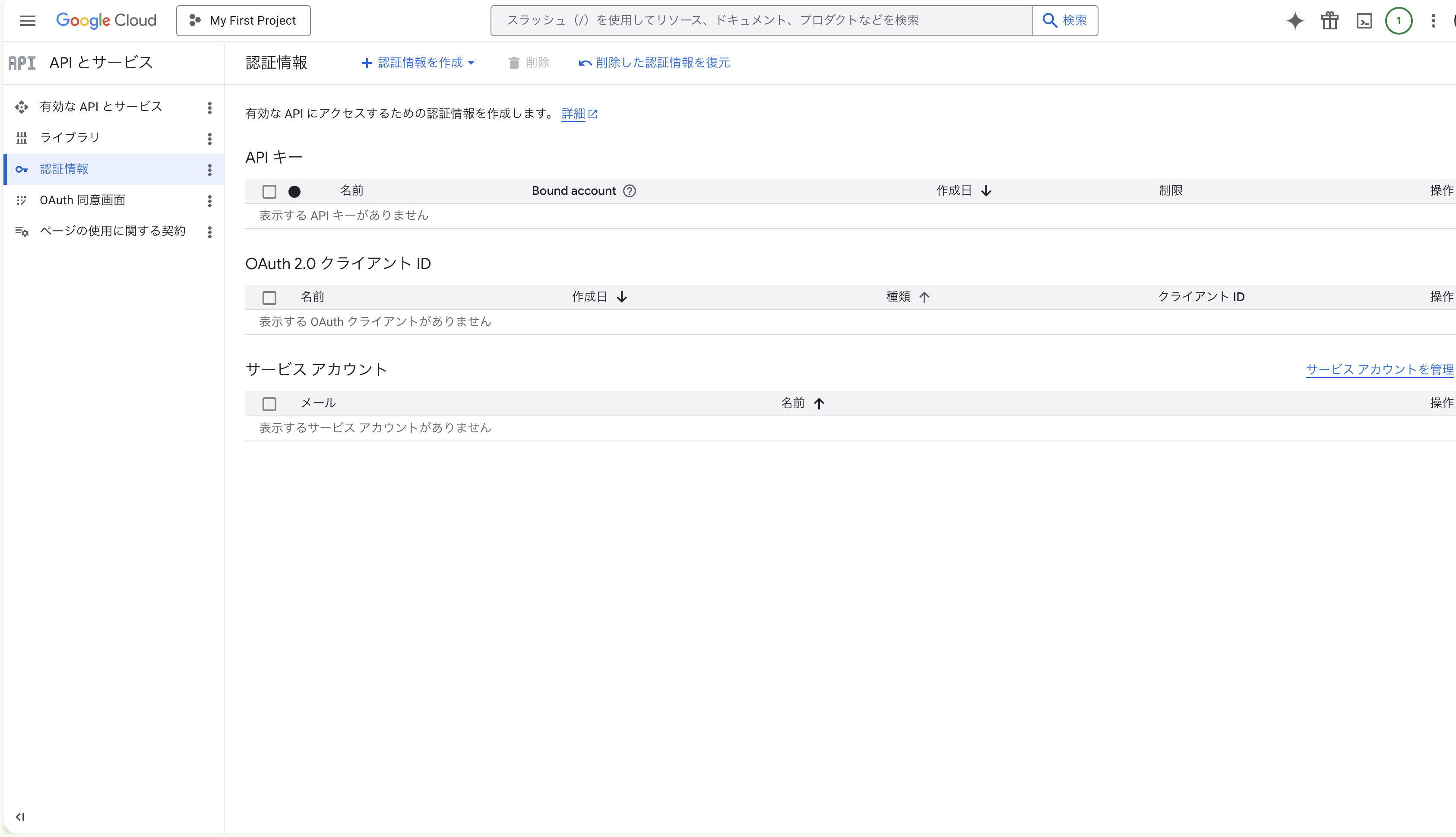
Open the Credentials page
Left nav → APIs & Services → Credentials, or console.cloud.google.com/apis/credentials directly.
-
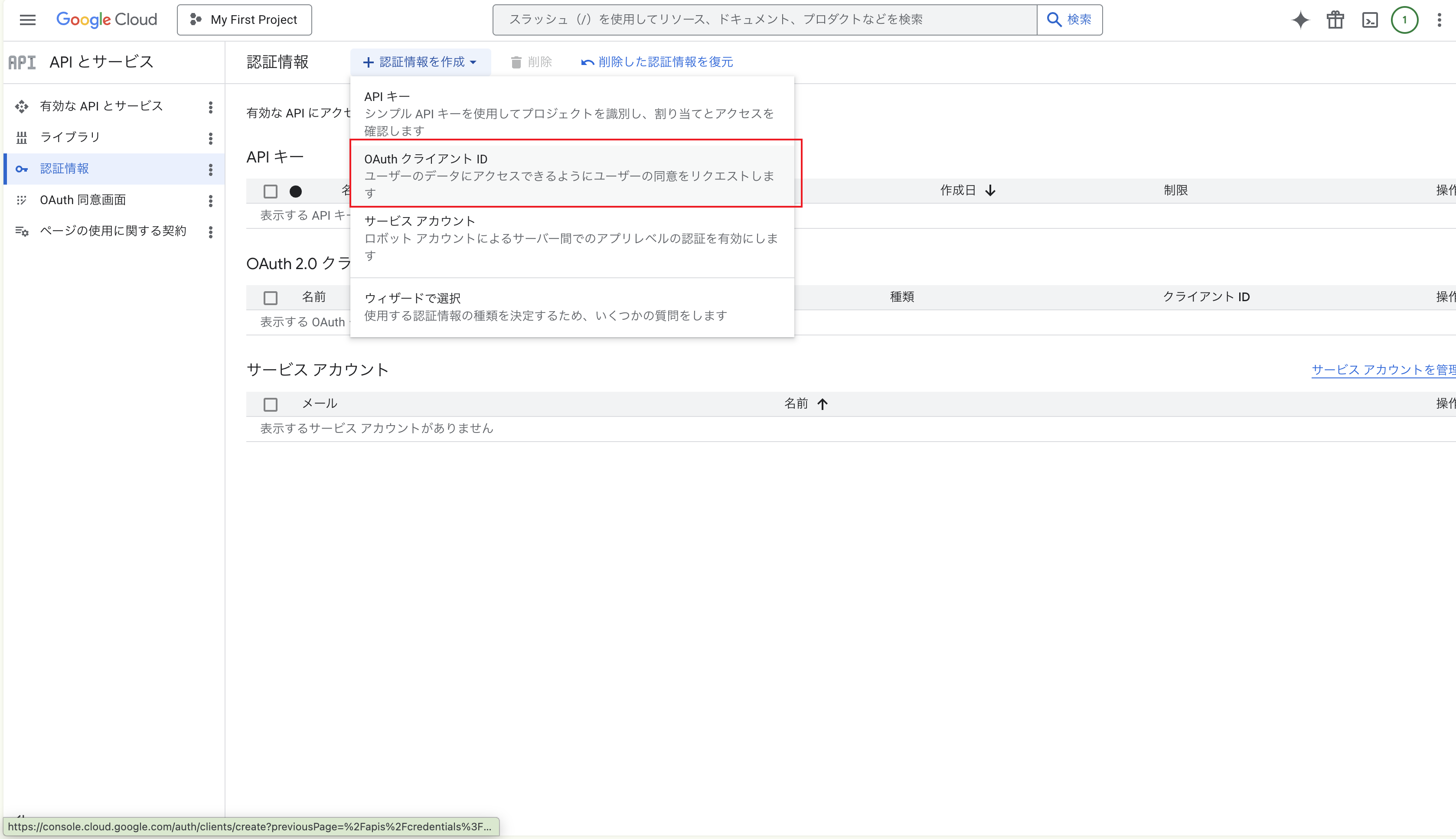
”+ Create credentials” → “OAuth client ID”
Click + CREATE CREDENTIALS at the top → pick OAuth client ID from the dropdown.
-
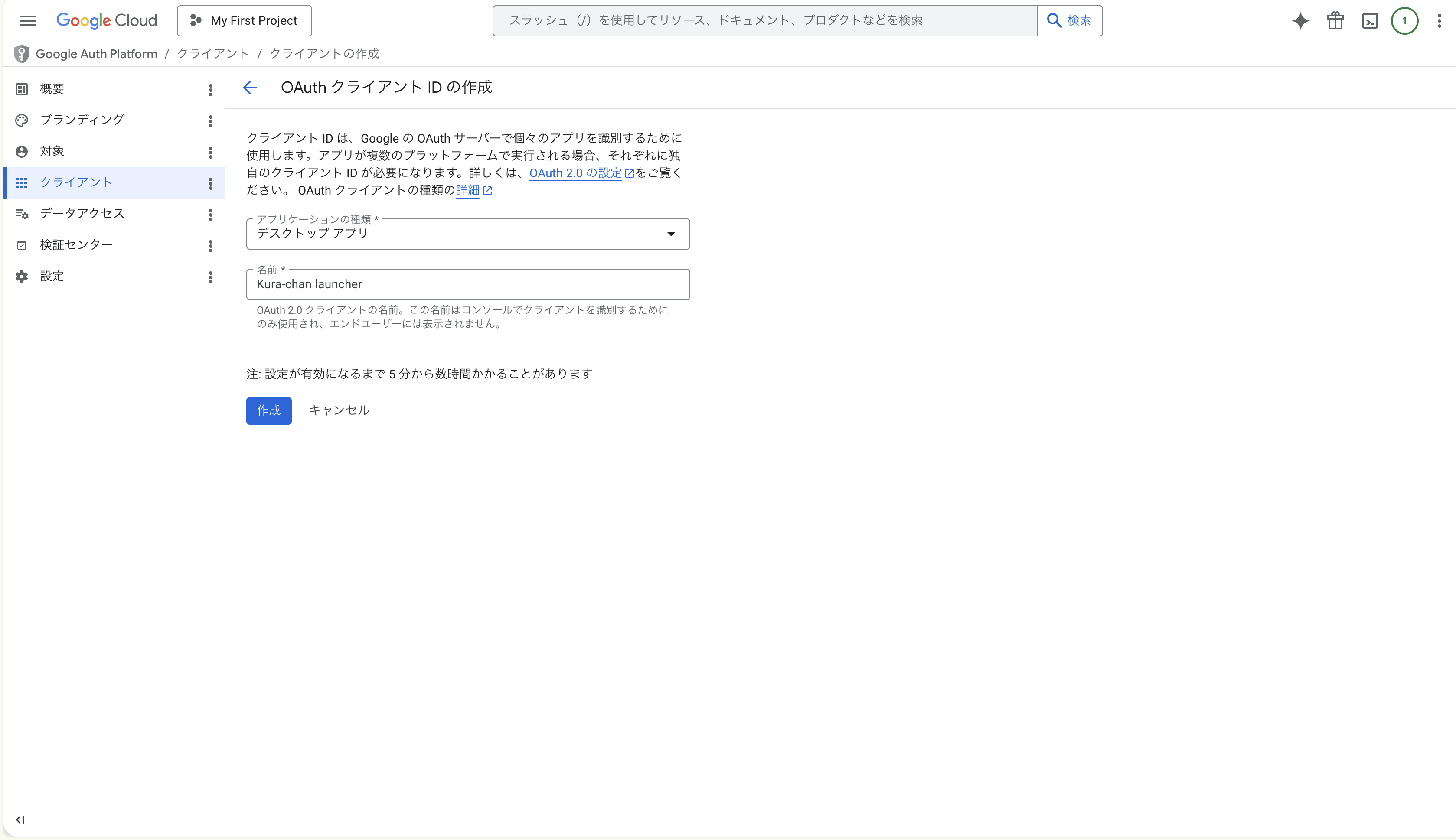
Pick application type “Desktop app”
- Application type: Desktop app
- Name:
Kura-chan launcher(anything you’ll recognize later)
-
Click “Create”
The dialog with your credentials appears in a few seconds.
-
Copy the Client ID and Client Secret
The dialog reads “OAuth client created” and shows two strings: Client ID and Client Secret.
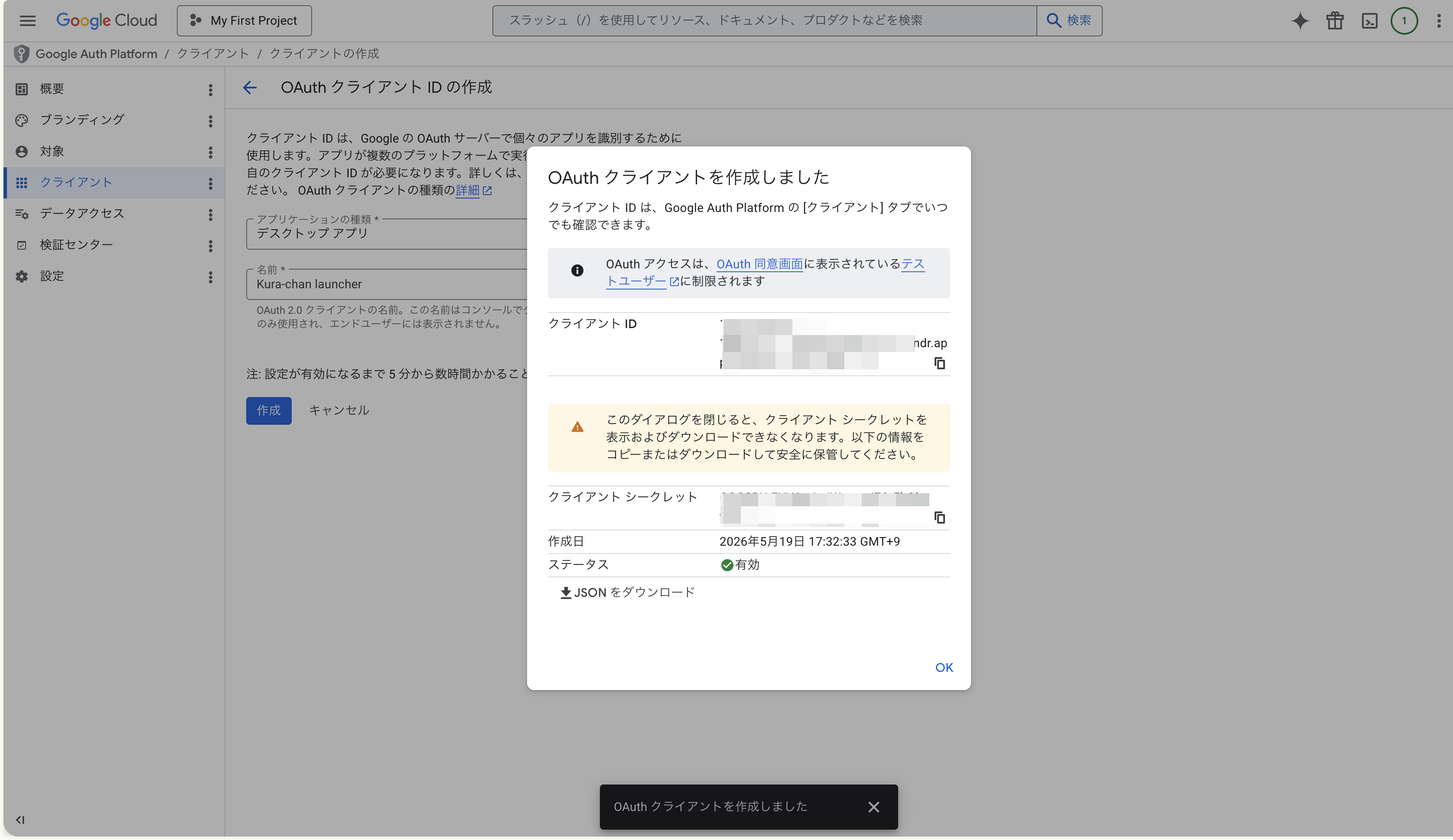
- Client ID looks like
123456789-abcdefghijklmnop.apps.googleusercontent.com - Client Secret looks like
GOCSPX-xxxxxxxxxxxxxxxxxxxxxxxxx
Copy both somewhere safe (password manager, or a temporary scratchpad).
- Client ID looks like
-
Click OK to close the dialog
The client appears in the Credentials list. The Client ID is visible later — the Client Secret isn’t.
If you lose the Client Secret
Section titled “If you lose the Client Secret”You can reset it:
- Credentials list → click the OAuth client name
- Detail page → click ADD SECRET or Reset secret
- The old secret is invalidated; a new one is issued
Don’t forget to update the dashboard in Step 5 with the new secret.
Common gotchas
Section titled “Common gotchas”Have the Client ID and Client Secret copied? Hand them to Kura-chan in Step 5 · Paste the credentials.