Verify the connection
After Step 6’s OAuth flow goes through, verify the connection in two passes: eyeball the dashboard, then ask Kura-chan to fetch real data.
Check 1 · Dashboard
Section titled “Check 1 · Dashboard”Open the Kura-chan dashboard’s Settings → External Service Integrations and look at the Google card.
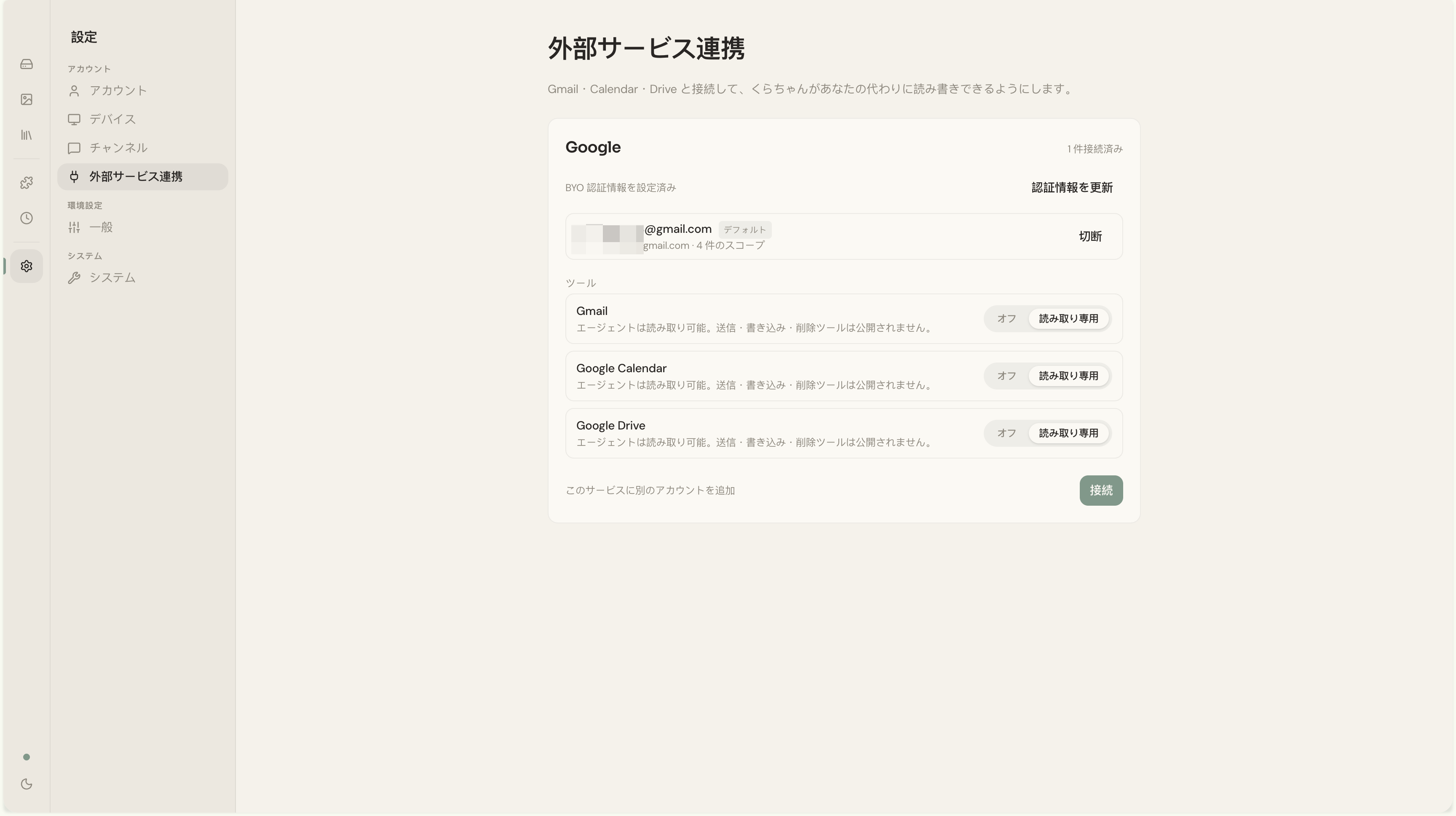
If all of these are true, the integration is fully wired up:
-
The top-right shows “1 connected”
When nothing’s connected this reads “0 connected” or is hidden. Any number ≥ 1 means tokens are saved.
-
“BYO credentials configured” line is visible
Confirms the Client ID / Client Secret you saved in Step 5 are still loaded. The Update credentials link on the right lets you rotate them.
-
Connection row shows email + scope count
The row should display:
- The connected Google account’s avatar + email
- A default badge (auto-assigned to the only account when there’s just one)
- A
gmail.com · N scopessubline - A Disconnect button at the right edge
-
Tools section shows the right modes
Under the Tools heading, the Gmail / Google Calendar / Google Drive rows should each display their Off / Read-only toggle in the position you set in Step 6. Eyeball this against what you actually toggled.
Check 2 · Ask Kura-chan for real data
Section titled “Check 2 · Ask Kura-chan for real data”Open the chat panel and ask one of these, based on which tools you enabled.
Gmail enabled
Section titled “Gmail enabled”Give me 3 of today's unread emails, just the subject linesExpected:
- 3 real subject lines come back
- Or “No unread emails matched” if there genuinely aren’t any
Calendar enabled
Section titled “Calendar enabled”What's on my schedule for tomorrow?Expected:
- The list of tomorrow’s events with times, titles, attendees
- Or “No events on your calendar tomorrow” if empty
Drive enabled
Section titled “Drive enabled”List 5 Google Docs I've recently editedExpected:
- File titles come back
- You can also search by name:
Find a file called "Q1 Plan"
Troubleshooting checklist
Section titled “Troubleshooting checklist”-
Dashboard shows scope count of 0
You hit Cancel instead of Continue during the OAuth flow. Click Connect again.
-
Scope count looks right, but chat says “can’t access”
Restart Kura-chan and retry. If it persists, see Troubleshooting.
-
“Insufficient Permission” error
The scopes you requested and the scopes you actually granted are out of sync. Toggle the relevant tool Off → Read-only, then run Connect again.
Pausing or removing access
Section titled “Pausing or removing access”| Goal | How |
|---|---|
| Toggle a tool on/off temporarily | Flip the Tools section toggle. No OAuth re-run needed. |
| Disconnect an account (delete tokens) | Click Disconnect on the connection row. |
| Revoke from Google’s side too | myaccount.google.com/permissions → your OAuth client → Remove Access. |
| Delete the OAuth client entirely | Google Cloud Console → Credentials → triple-dot menu on your client → Delete. |
That’s the full setup. If anything went wrong, the Troubleshooting page has fixes for every error pattern we’ve seen.