Step 5 · Paste the credentials
Take the Client ID and Client Secret from Step 4 and paste them into Kura-chan’s integrations panel. About 1 minute.
-
Open the Kura-chan dashboard
In your browser, go to http://localhost:8080 (make sure the launcher / picoclaw process is running).
-
Open the “External Service Integrations” tab
Left nav or top tab → External Service Integrations (or however the dashboard labels integrations in your locale).
-
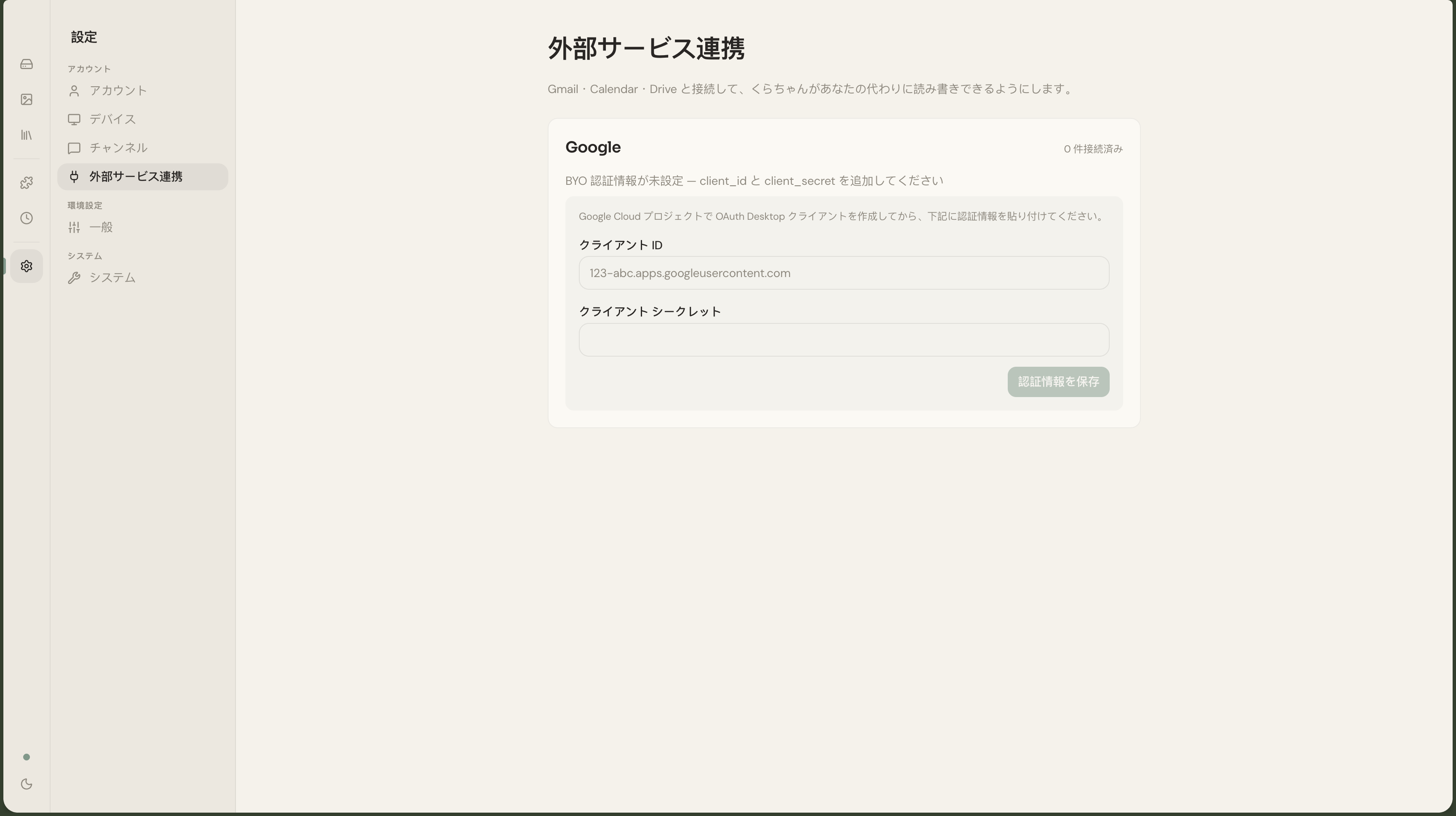
Find the Google card
You should see a card titled “Google”. Without credentials, it shows the message “BYO credentials missing — add client_id / client_secret to connect” and an inline form.
-
Paste the Client ID and Client Secret
- Client ID: the
…apps.googleusercontent.comstring from Step 4 - Client Secret: the
GOCSPX-…string from Step 4
Make sure no leading or trailing whitespace sneaks in (a common copy-paste mistake). The Client Secret field is masked since it’s a password.
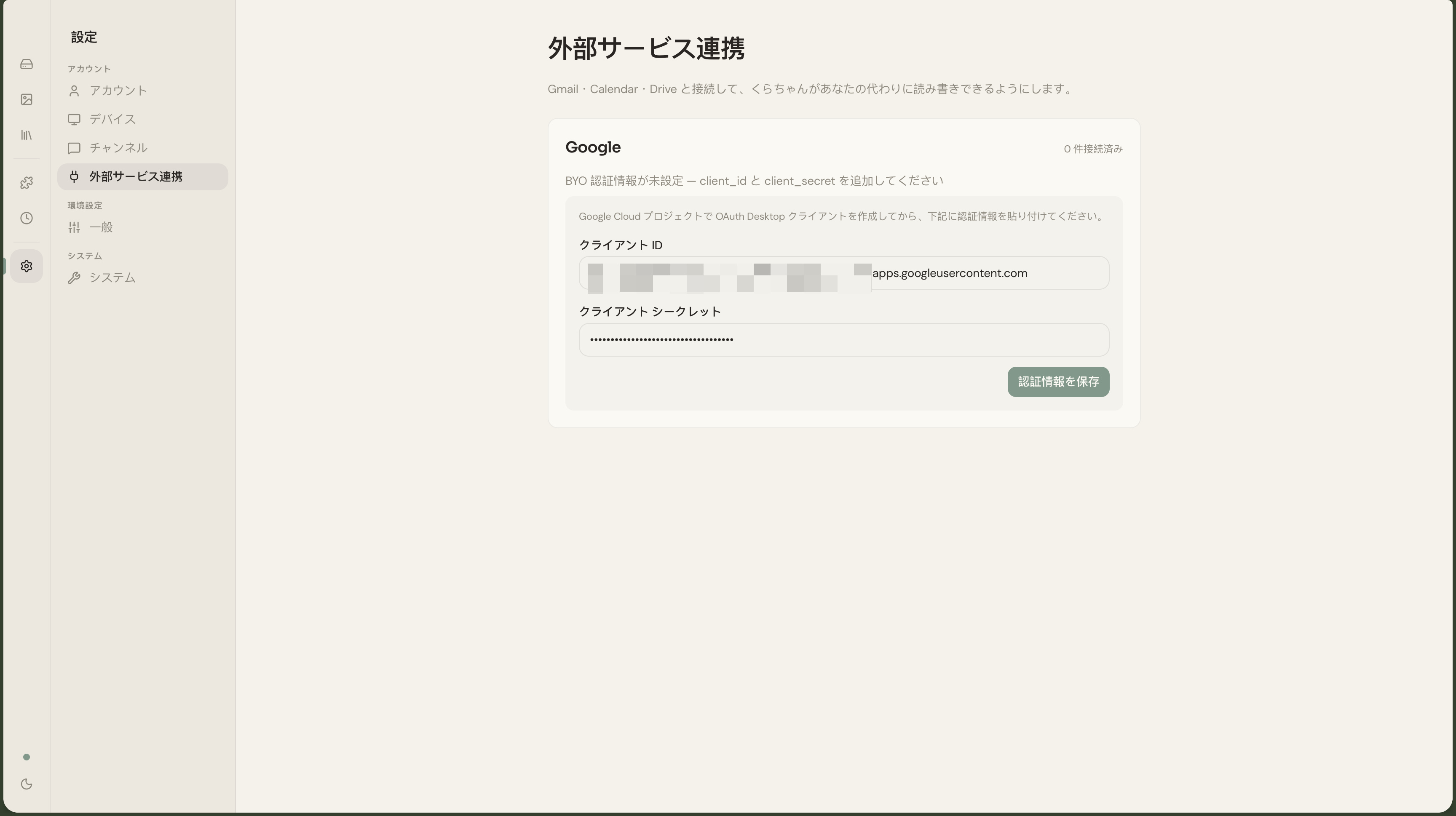
- Client ID: the
-
Click “Save credentials”
The button changes to “Saving…”, and after a few seconds the form collapses.
-
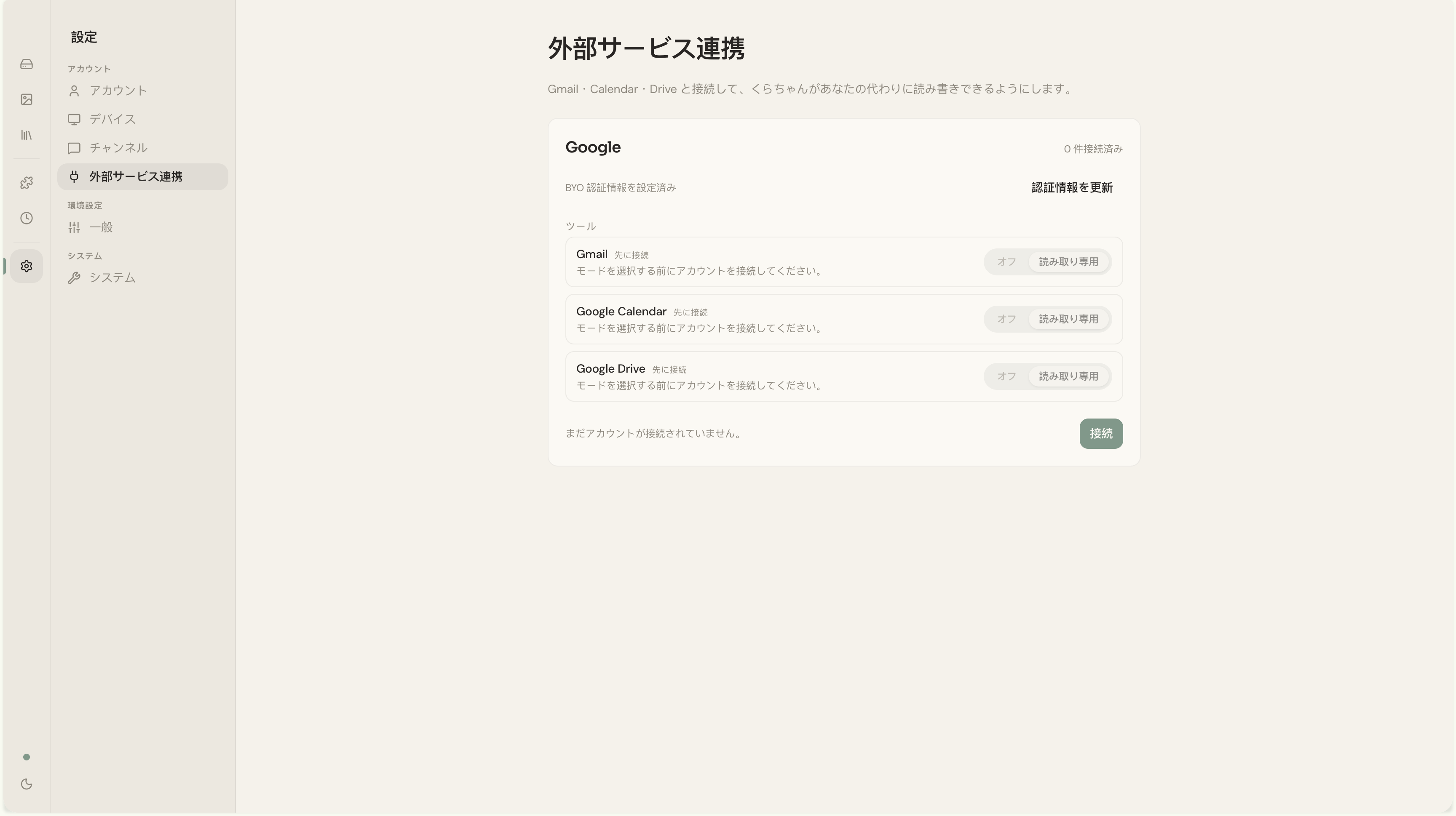
Confirm “BYO credentials configured”
The form is replaced by a “BYO credentials configured” line. Below it, the card now shows the Tools section (Gmail / Calendar / Drive rows) and a Connect button.
Replacing credentials later
Section titled “Replacing credentials later”Rotated the Client Secret? Switching to a different project’s client? Click Update credentials at the top-right of the card. The form reappears for re-entry.
Common gotchas
Section titled “Common gotchas”Credentials saved? Last step: Step 6 · Connect and choose scope.