
Dashboard: Connect & sync a mailbox
Mailboxes are connected in the Connectors panel under Settings. Once connected, Kura-chan syncs your mail automatically and builds a local search index — there is no manual sync step.
-
Click the sections menu in the top-left corner, choose
Settings, then openConnectors. -
Pick a service in the
Mailgroup:Gmail: authorize a Google account.Outlook: authorize a Microsoft account.Email (IMAP): connect any mailbox — SoftBank, university mail, or a custom server.
-
Follow the prompts to finish authorization. Once connected, the service row shows
Connectedwith your mail address.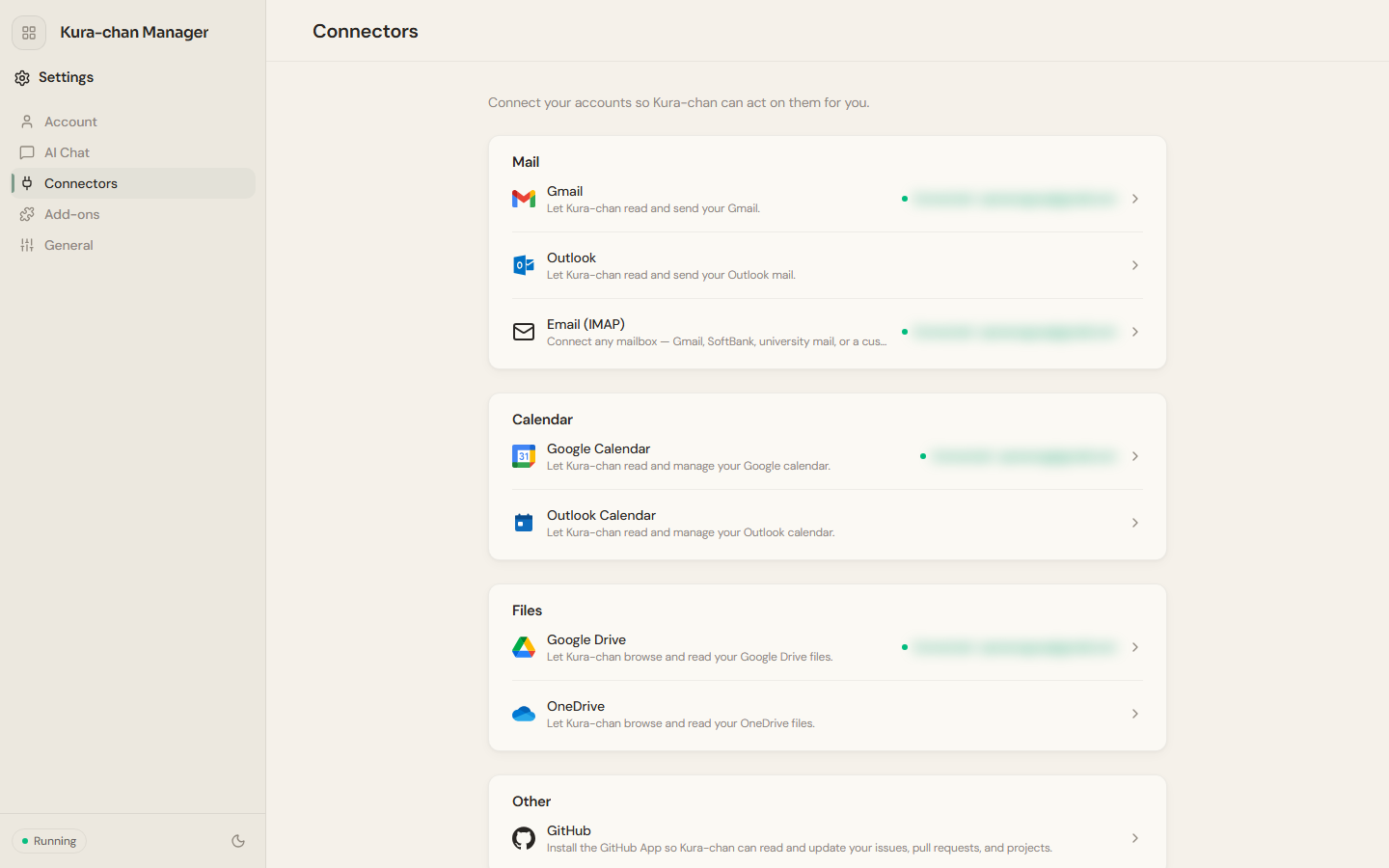
-
Syncing starts automatically in the background. After a short while, your mail appears on the
Mailpage.
Troubleshooting
Section titled “Troubleshooting”- The
Mailpage is empty: first check that the service showsConnectedinConnectors; a freshly connected mailbox needs time to finish its first sync. - Authorization fails: click the service again to retry, and make sure your browser isn’t blocking the authorization pop-up.
Next steps
Section titled “Next steps”Once syncing finishes, read Dashboard: Mail to learn how to browse and read mail, or jump to Search & filter mail.