
Kura-chan app: Preferences
Preferences is the settings page for the Photos section. It brings together your photo source, AI search preparation, playback, and the getting-started guide.
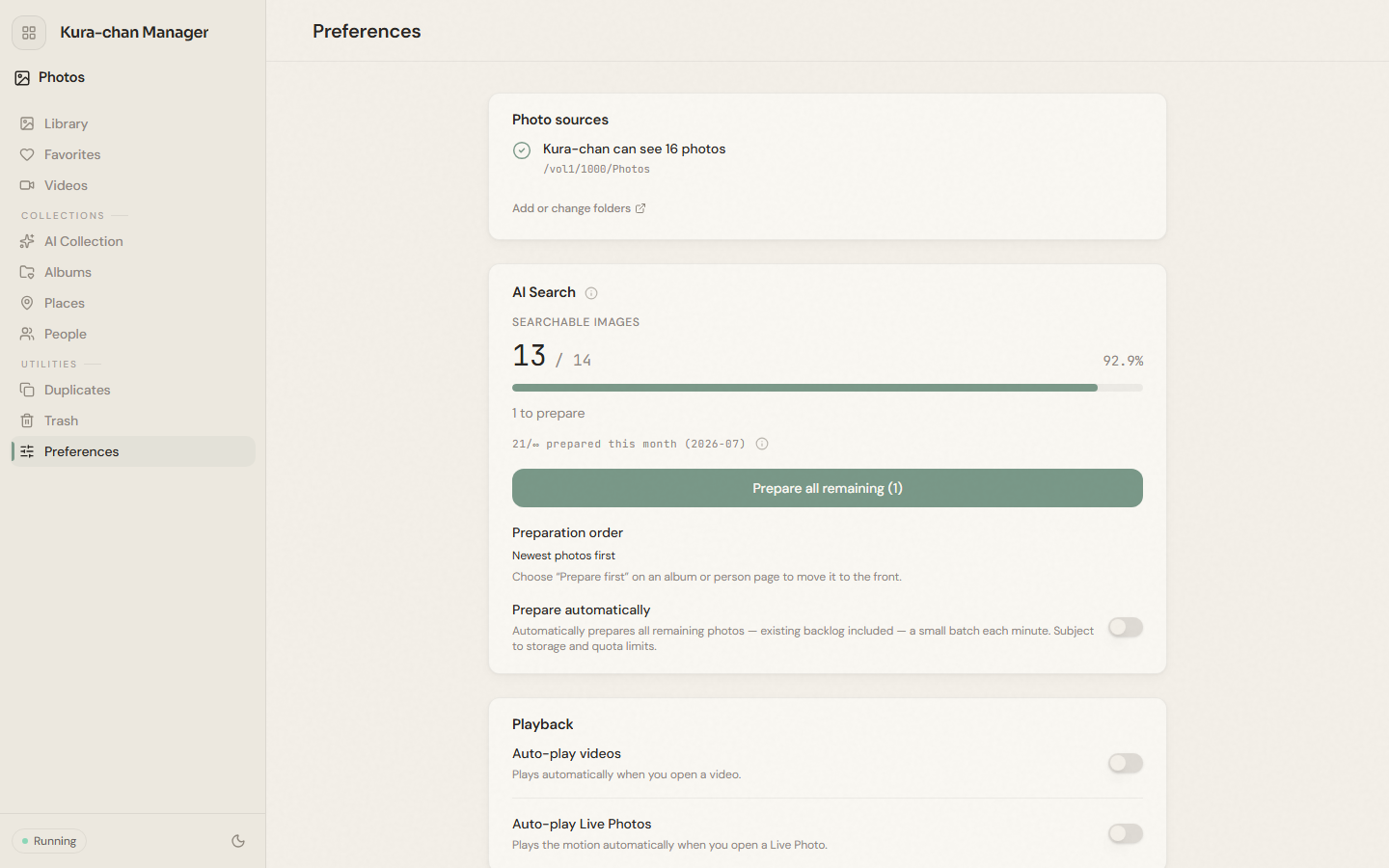
Photo source
Section titled “Photo source”Photo source decides which photos Kura-chan can see. It shows the current source folder and how many photos it can see.
-
Click
Preferencesin the left sidebar and findPhoto source. -
Click
Add or change folderand pick the folder where your photos live. -
After saving, Kura-chan scans that folder and adds its photos to your library.
AI search preparation
Section titled “AI search preparation”For photos to be findable in Search photos, they first need to be “prepared” — turned into a searchable form. The AI search section shows the share of photos that are searchable and how many are waiting.
-
In the
AI searchsection, clickPrepare all remaining— the button shows how many photos are left. -
Let it run in the background. Preparation continues while you use Kura-chan.
-
Turn on
Auto-prepareso Kura-chan prepares a small batch of photos (including older ones) every minute, making new photos searchable over time.
Playback
Section titled “Playback”Auto-play videos: play videos automatically when opened.Auto-play live photos: play the motion part of live photos when opened.
Getting-started guide
Section titled “Getting-started guide”Turn on Don't show the getting-started guide to hide the walkthrough. When it’s off, the guide reappears whenever there are unfinished setup steps.
Troubleshooting
Section titled “Troubleshooting”- Kura-chan can’t see any photos. Confirm you added the right folder under
Photo source. - Photos aren’t searchable. Confirm those photos have finished preparing under
AI search; check your available allowance on the account page.
Next steps
Section titled “Next steps”Once your photos are prepared, you can Search photos.