
RELEASE NOTES · WHAT’S NEW
Edit your photos. See your allowances clearly.
This update focuses on AI photo editing in the web app, on-device face hiding, clearer photo preparation and editing allowances, and easier access to language and time zone settings.
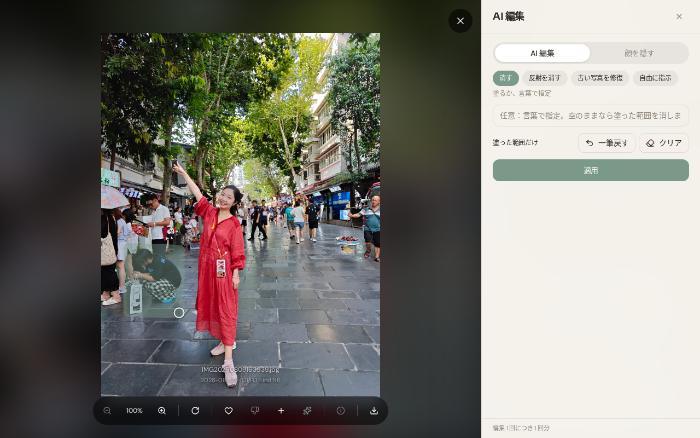
Edit a photo while you are viewing it, and see a clearer picture of your remaining allowance when preparing a large photo library for the first time.
Edit photos with a brush or a few words
Section titled “Edit photos with a brush or a few words”Open a photo and choose AI edit to work in the same view. On a computer, you can also press E. On a phone, the controls appear in a panel at the bottom.
- Remove unwanted details: paint over a person or object, or describe it, such as “the wires and poles.” You can combine painting and words.
- Remove reflections: clear reflected people or lights from glass.
- Restore old photos: improve scratches, fading and blur.
- Give a custom instruction: describe the change you want, such as “turn the cloudy sky blue.”
Press and hold to compare with the original, then continue editing the result if needed. Saving creates a new photo and preserves the original, including its capture date and camera information. AI results vary with the photo and instruction; review them before saving.
Before your first cloud AI edit, the app explains that the photo will be sent to the AI model provider and asks for your consent.
Choose which faces to hide before sharing
Section titled “Choose which faces to hide before sharing”Hide faces offers stickers or blur, with a preview. Tap each detected face to hide or keep it. You can also keep named people visible while hiding everyone else.

This runs locally on MeCloud, without uploading the photo or using AI editing credits. It does not require enabling cloud AI editing consent. Check the preview before sharing to make sure no face you intended to hide was missed.
Monthly and one-time photo allowances, shown separately
Section titled “Monthly and one-time photo allowances, shown separately”Photo settings now show the remaining one-time allowance below your monthly usage. You can see the 10,000-photo one-time preparation allowance available across all plans, including Free, directly in the client.
- Your monthly allowance is used first, followed by the one-time allowance.
- The one-time allowance does not expire or reset each month.
- When both are exhausted, the page explains the pause and shows the next resumption date.
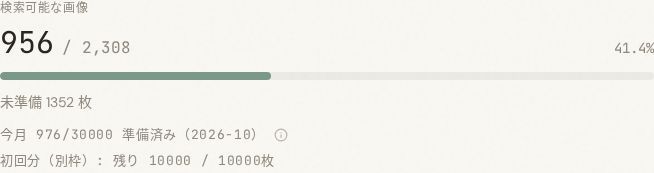
Preparation status and plan suggestions in search and photo details also take your remaining one-time allowance into account. This reduces unnecessary upgrade suggestions when you first prepare a large library.
AI photo editing in plan comparisons
Section titled “AI photo editing in plan comparisons”The upgrade cards under Settings → Account now include AI photo editing, making it easier to compare allowances. The one-time photo preparation allowance is explained below the cards.
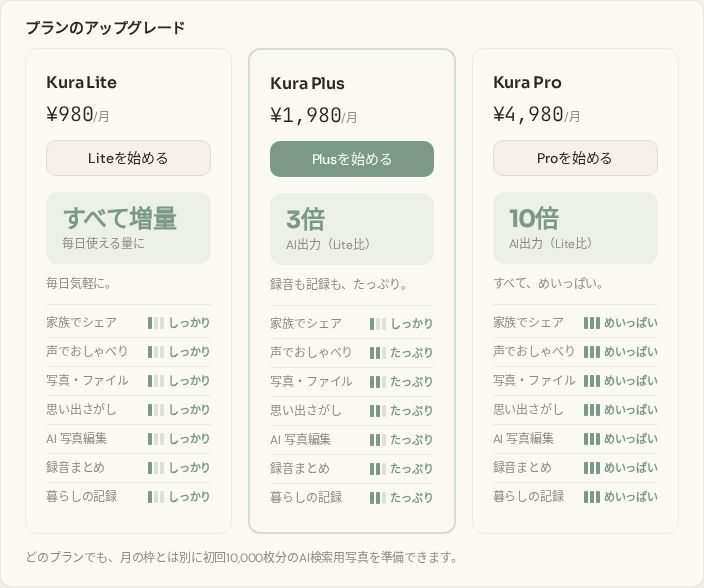
AI photo editing and photo preparation use separate allowances. Once quota information is returned, the editor shows the remaining edits for the month. Local face hiding does not use this allowance.
Language and time zone at the top of settings
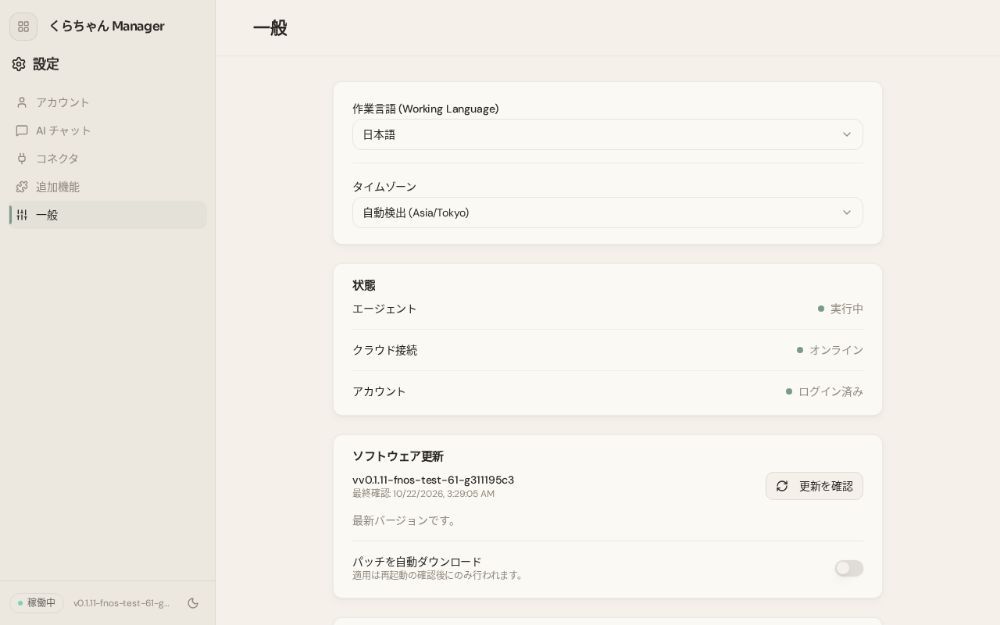
Section titled “Language and time zone at the top of settings”Working language and time zone move to the top of Settings → General, making them easier to reach on both computers and phones. Status comes next; software updates, restart, log submission and other maintenance cards retain their relative order.
Other improvements
Section titled “Other improvements”- Zoom and pan remain available while editing. Typing in an input no longer accidentally triggers photo rotation or zoom shortcuts.
- An open photo viewer stays in sync when its photo list changes.
- Editing errors use clearer explanations. If completion cannot be confirmed, the request is not automatically resubmitted.
See more examples in the photo showcase.
Screenshots show a development build with the original Japanese interface. Plan cards use a simulated account state. Check your account page for current allowances and prices.