
Kura-chan app: Calendar
Calendar aggregates events from the built-in calendar and any Google and Outlook calendars you connect. You can view your schedule, add or adjust events here, or hand it to Kura-chan.
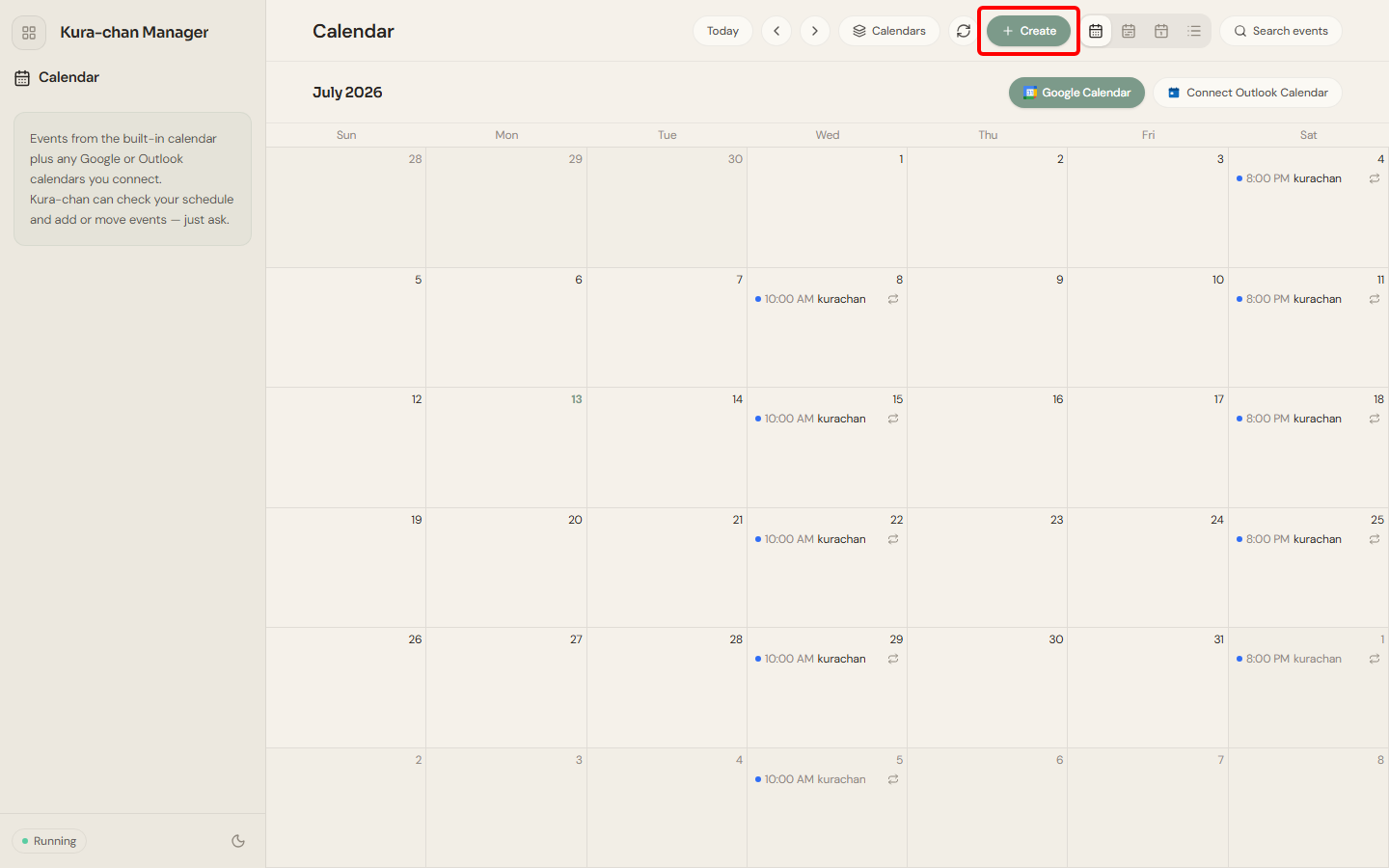
Browse events
Section titled “Browse events”-
Click the sections menu in the top-left corner and choose
Calendar. -
Use
Todayto jump back to the current day, and‹/›to move between periods. -
Click the
Calendardropdown at the top to choose which sources show:Built-in calendar, connected accounts, andKura-chan's schedule. You can alsoRefresh connected calendarshere. -
Use
Search eventsto find events by keyword.
Create an event
Section titled “Create an event”-
Click
Createin the top-right.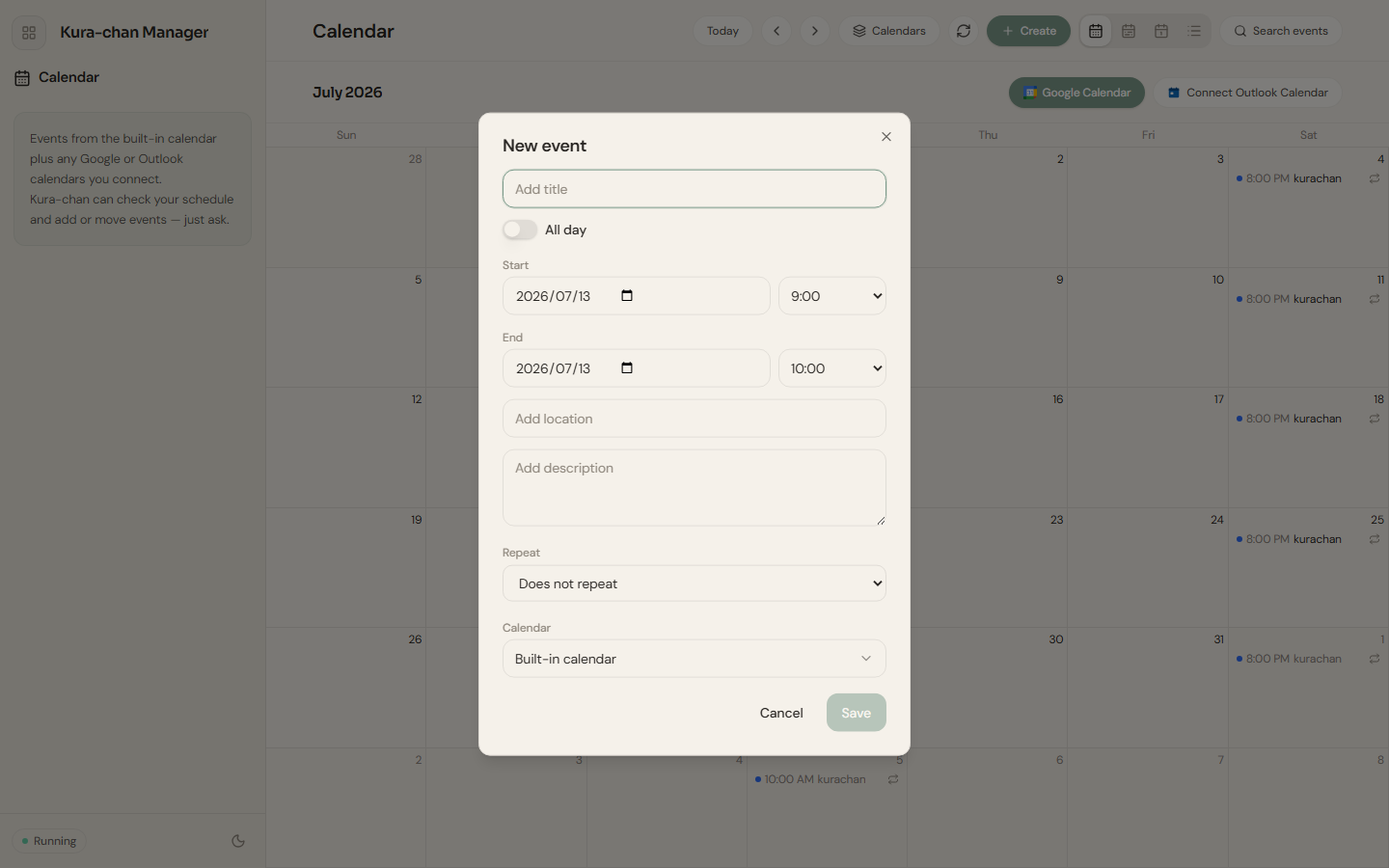
-
In
New event, enter a title and theStartandEndtimes. Turn onAll dayif needed, or setAdd locationandRepeat. -
In
Calendar, pick which calendar to save to (for exampleBuilt-in calendar). -
Click
Save. Click an existing event on the calendar to see its details.
Connect more calendars
Section titled “Connect more calendars”Connect Google Calendar or Outlook Calendar under Settings → Connectors and follow the authorization prompts. Once connected, that calendar’s events are aggregated here.
Next steps
Section titled “Next steps”To have Kura-chan schedule events or set reminders in chat, read Chat with Kura-chan: Reminders & calendar. To have Kura-chan run tasks on a schedule, see Kura-chan’s schedule.