
Kura-chan app: Trash
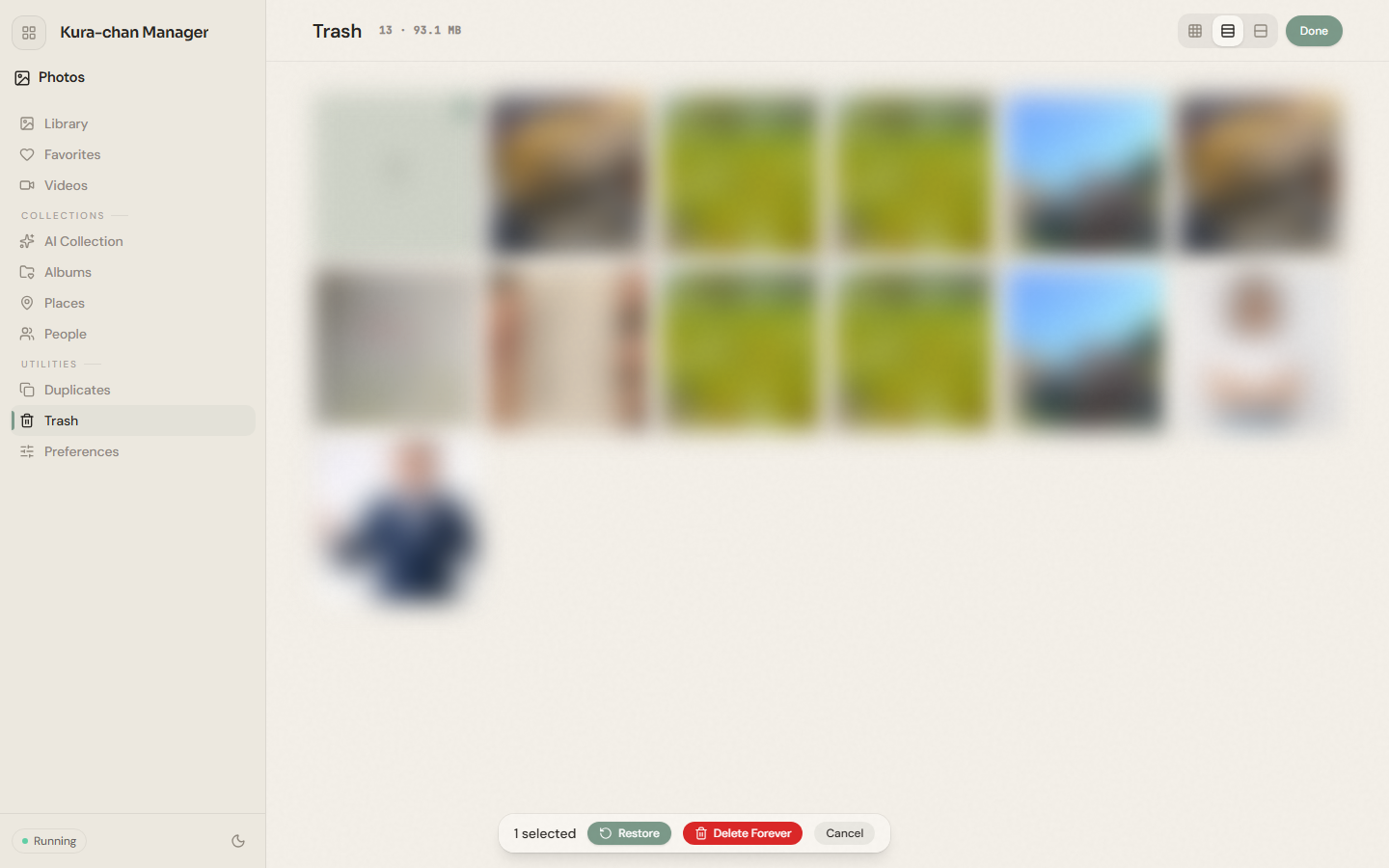
Photos deleted from the photo tools go to the Trash first, so you can confirm before deleting them permanently. The top of the page shows how many items are in the trash and how much space they take.
-
Click
Trashin the left sidebar. -
Click
Selectin the top-right to enter multi-select mode and pick the photos to handle. -
Choose from the action bar at the bottom:
Restore: put photos back into the library.Delete permanently: remove them from the device for good — this cannot be undone.
Next steps
Section titled “Next steps”Restored photos return to the Library.