
Kura-chan app: Articles
Articles is the heart of Memory Kura. Kura-chan reads the content you add — documents, transcripts, document photos — and organizes it into connected articles, shown as a graph of how they relate.
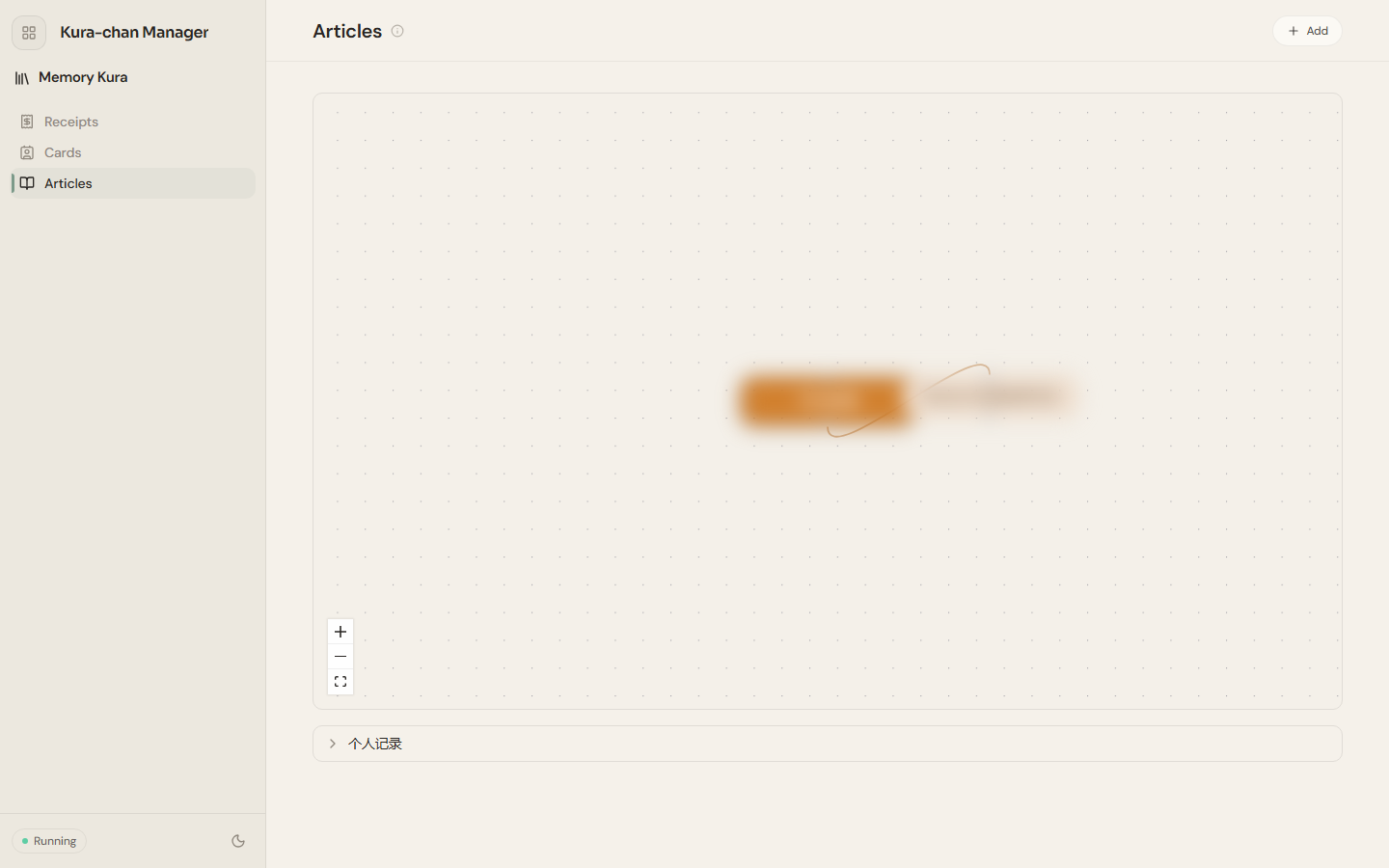
Browse articles
Section titled “Browse articles”-
Click the sections menu in the top-left corner, choose
Memory Kura, then openArticles. -
Explore articles and their links in the graph. Use the buttons at the bottom-left to zoom in, zoom out, or fit the view, and click a node to open that article.
-
Articles are also listed below the graph. Click to expand and read. Each article keeps its source so you can trace it back.
Add new content
Section titled “Add new content”-
Click
Addin the top-right to openAdd new. -
Choose a source:
From files: documents in the Kura DriveDocumentsfolder and results from Transcribe.From photos: photos recognized as documents in your library.
-
Select what to add and click
Add. Kura-chan organizes it into an article that appears in the graph when done.
Troubleshooting
Section titled “Troubleshooting”- The graph is empty. Nothing has been added yet. Click
Addand pick some documents or transcripts. - A document doesn’t appear under
From files. Confirm it’s saved in the Kura DriveDocumentsfolder. See Upload & download. - My photos aren’t here. Memory Kura can turn photos of receipts, cards and documents into records or articles. Browse ordinary photos in Photos; AI search preparation for photos happens separately in Photos → Preferences.
Next steps
Section titled “Next steps”To organize receipts and cards, continue with Receipts and Business cards.