
Kura-chan app: Business cards
Cards turns business cards in your photos into contact records. Kura-chan automatically finds card photos in your library, and once you recognize them here, each becomes a searchable contact card.
Recognize cards
Section titled “Recognize cards”-
Click the sections menu in the top-left corner, choose
Memory Kura, and openCards. -
Click
Addin the top-right (the button shows how many are waiting) to open theScan newpage. When the list is empty, aScan card photosbutton with the same effect also appears in the middle of the page.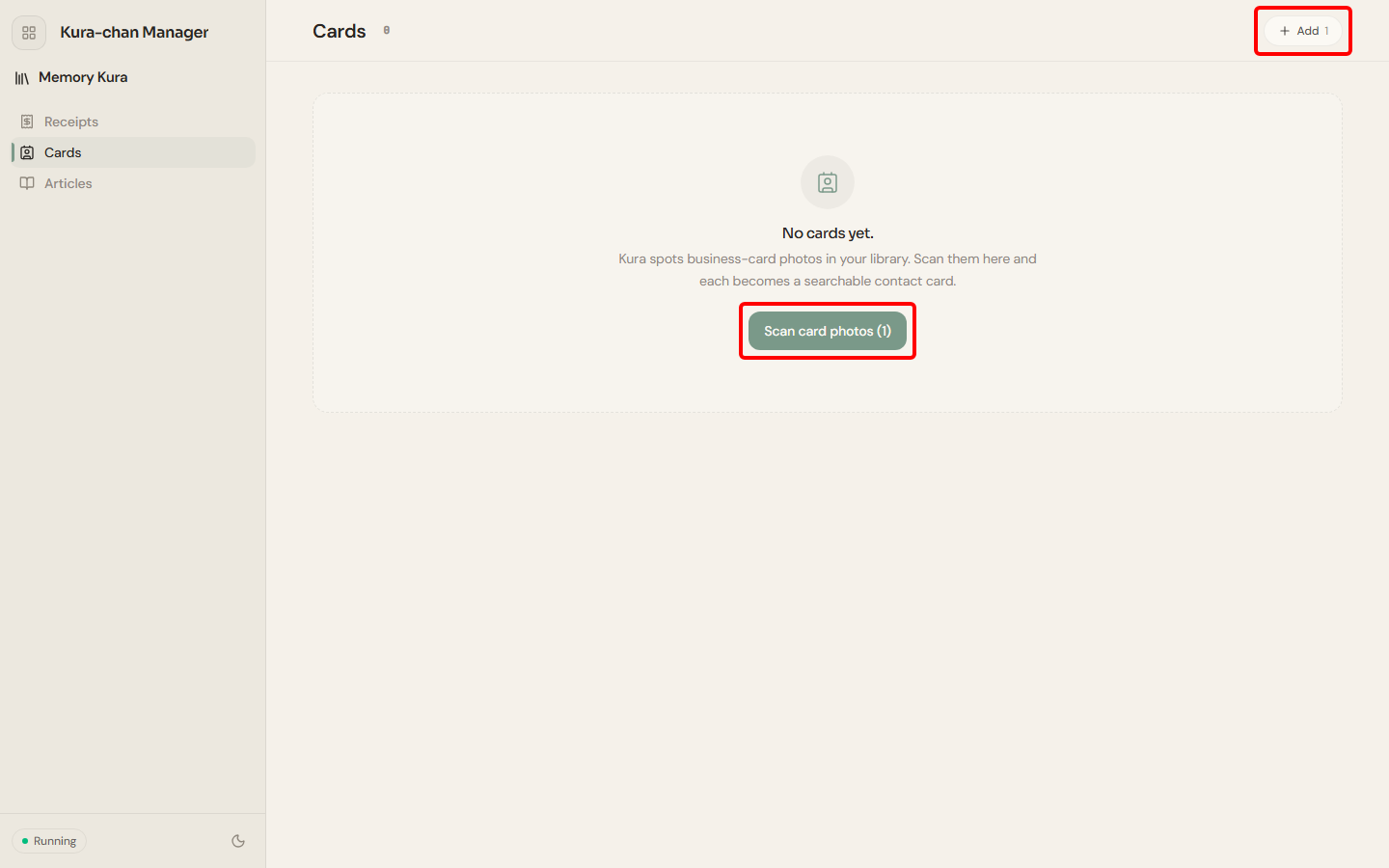
-
Click
Select(orSelect all) and pick the photos to recognize. If a photo isn’t actually a card, select it and clickNot a cardto remove it from the list; the original photo stays in your library. -
Click
Scan. Recognition runs in the background, and the page notes that new cards will appear here when done. -
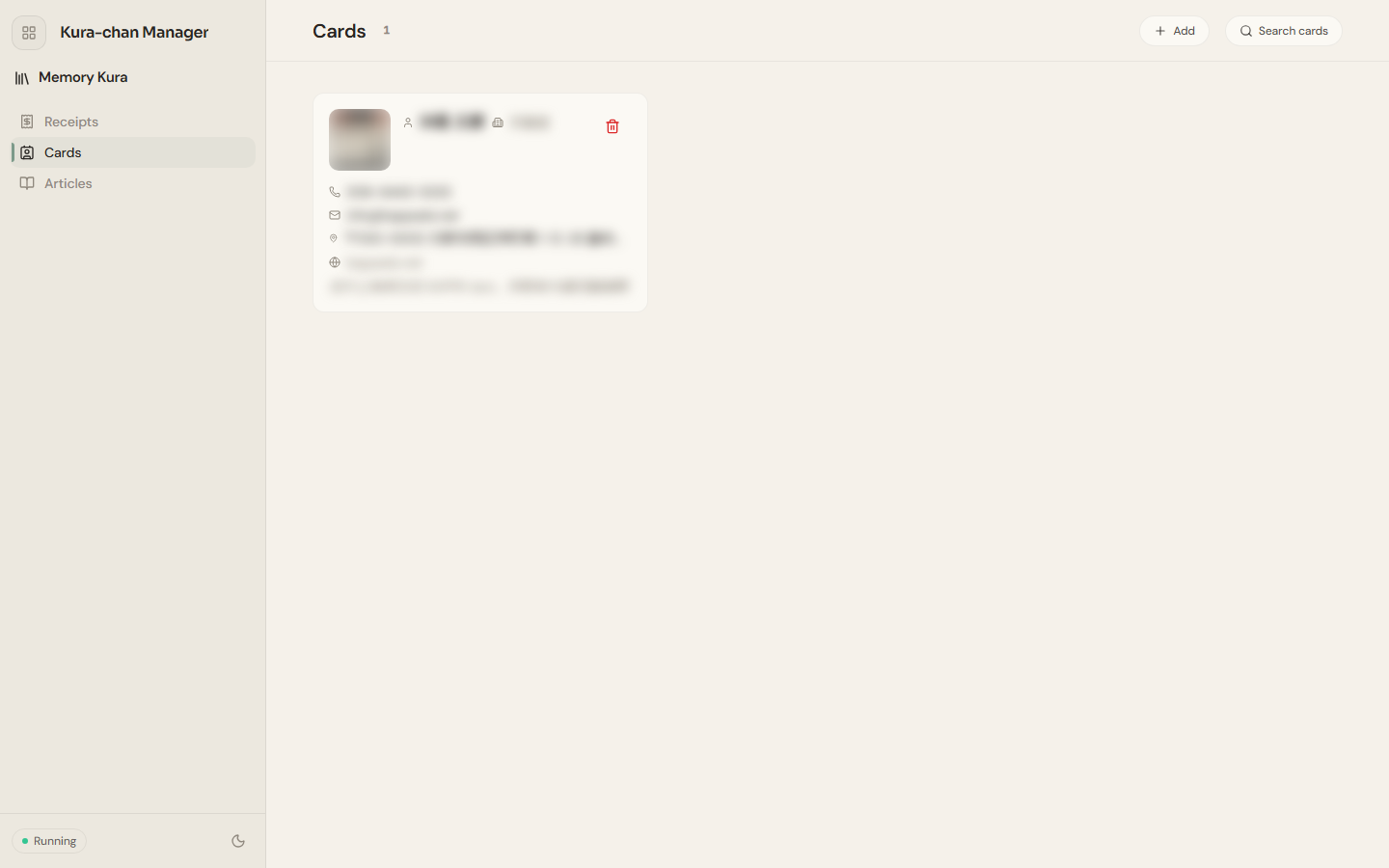
Once finished, each photo becomes a contact card in the list.
Review and organize
Section titled “Review and organize”- Each card has fields like
Name,Company,Title,Phone,Email,Address,Website, andNotes. - Use
Search cardsin the top-right to find byName,Company, orTitle. - Open a card to see the original image, edit fields, or delete the record.
Next steps
Section titled “Next steps”To capture cards by photo over LINE, read Chat with Kura-chan: Receipts & cards.