
Recognize people
Kura-chan can detect faces in your photos and group photos by person, so you can browse all of one person’s photos at once.
Before you begin
Section titled “Before you begin”- Let Kura-chan read your photos first — see the photo source in Preferences.
- Face recognition is available on all plans, including the free plan.
Scan and group
Section titled “Scan and group”-
Click
Peoplein the left sidebar.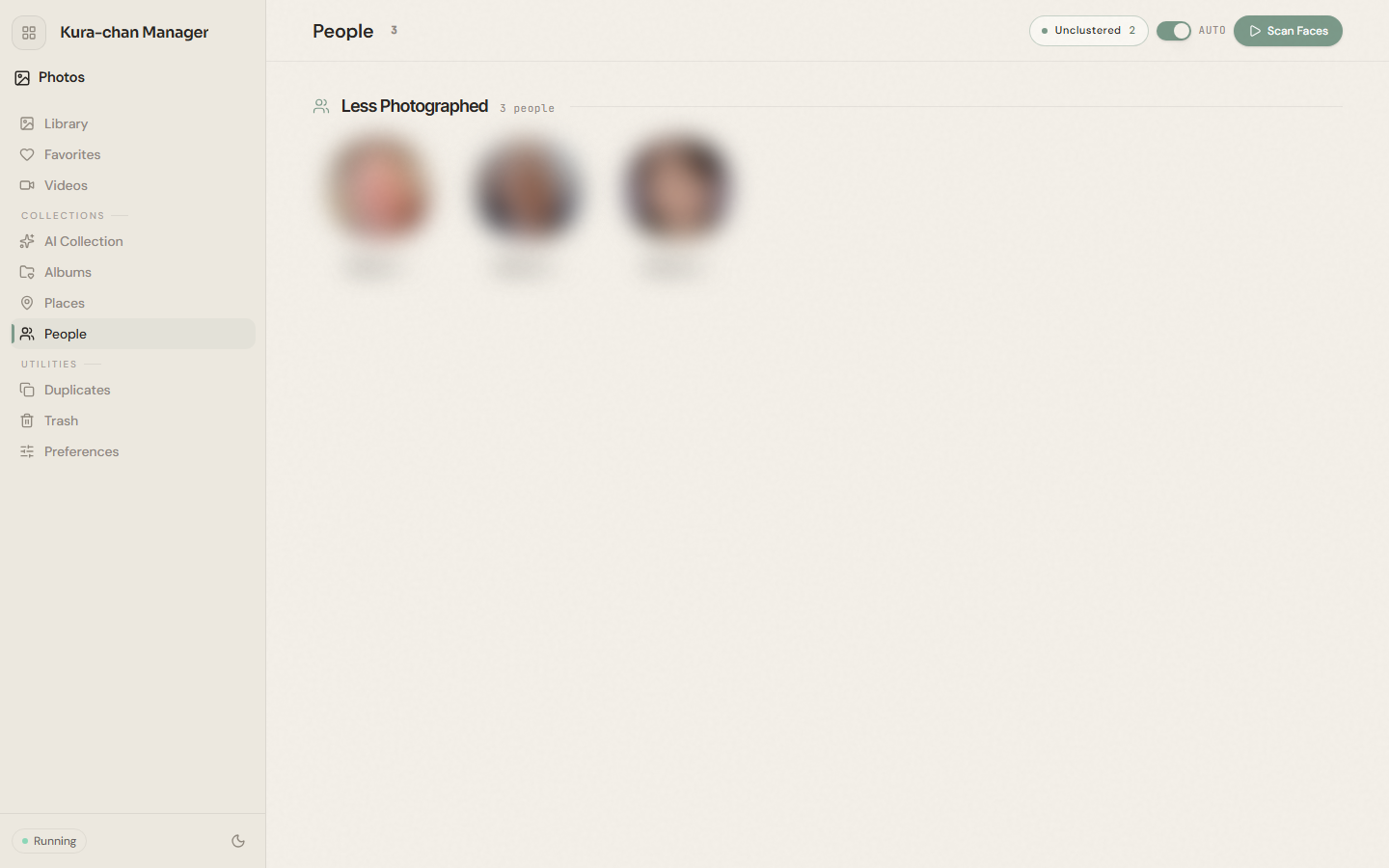
-
Click
Scan facesin the top-right. Kura-chan detects faces and clusters them into people. Scanning a large library takes time and runs in the background. -
Turn on
Autoto keep recognizing faces in new photos automatically. -
Faces that aren’t grouped yet appear under
Ungrouped; click any face to open the original photo it came from.
Manage a person
Section titled “Manage a person”Open a person to enter their photo page, then click the ⋯ (more) button in the top-right to open the actions menu:
Rename— name or rename the person.Merge…— merge another group of the same person into this one.Prepare this person first— prioritize this person’s photos for AI search preparation.Hide— remove this person from the people list; their photos stay in the library.
Troubleshooting
Section titled “Troubleshooting”- The same person is split into several groups. Open one and use
Merge…to combine the other group into it. - There’s someone you don’t want in the list. Open that person and choose
Hide. - The scan looks stuck. It runs in the background and large libraries take time. Leave it and check back later.
Next steps
Section titled “Next steps”To browse auto-organized collections by theme, continue with AI collections.