
Quick start
The first time you open Kura-chan, a four-step setup wizard appears: Welcome → Account → Provider → Confirm. Follow it through, connect LINE, and you’re ready to go.
Finish the initial setup
Section titled “Finish the initial setup”-
Welcome: open Kura-chan and click
Get started.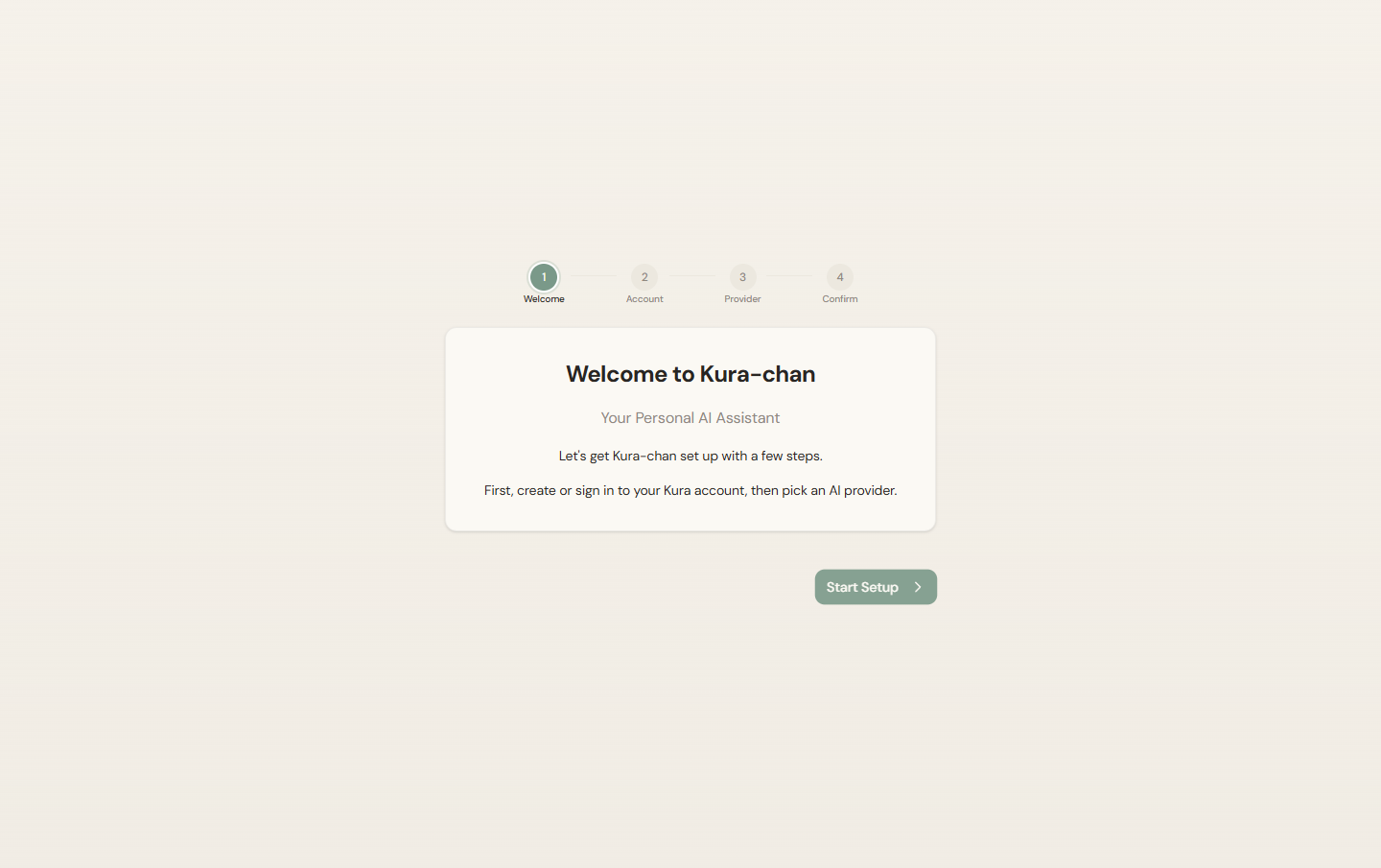
-
Account: sign in to or create a Kura account. An account is required whether you use Kura AI or bring your own API key. Enter your
EmailandPasswordand clickSign in; if you don’t have an account, switch toCreate account.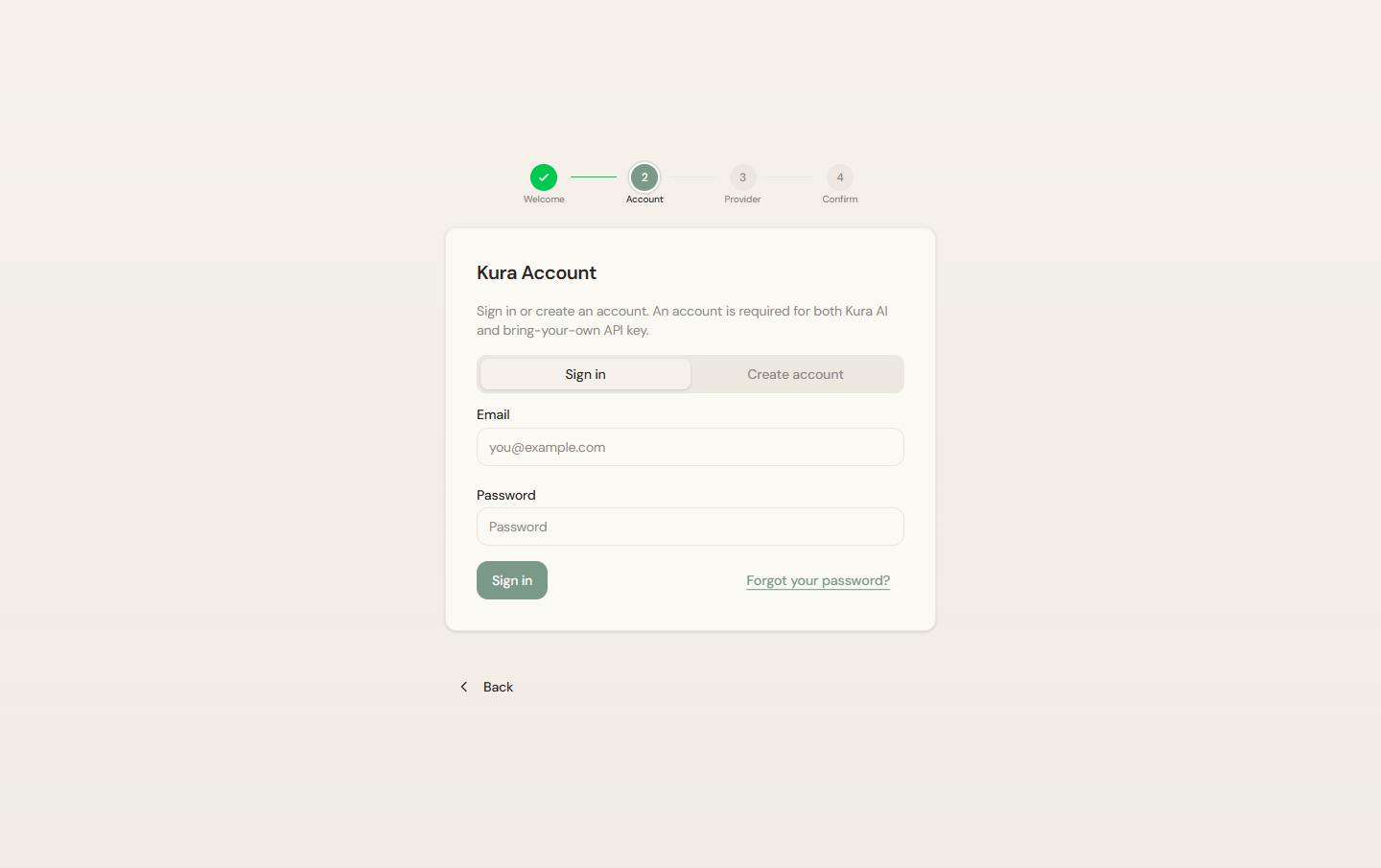
-
Provider: choose an AI provider.
Kura AI(recommended) needs no API key and works out of the box; or chooseYour own API keyto use your OpenAI, Claude, Gemini, or other key. ClickNext.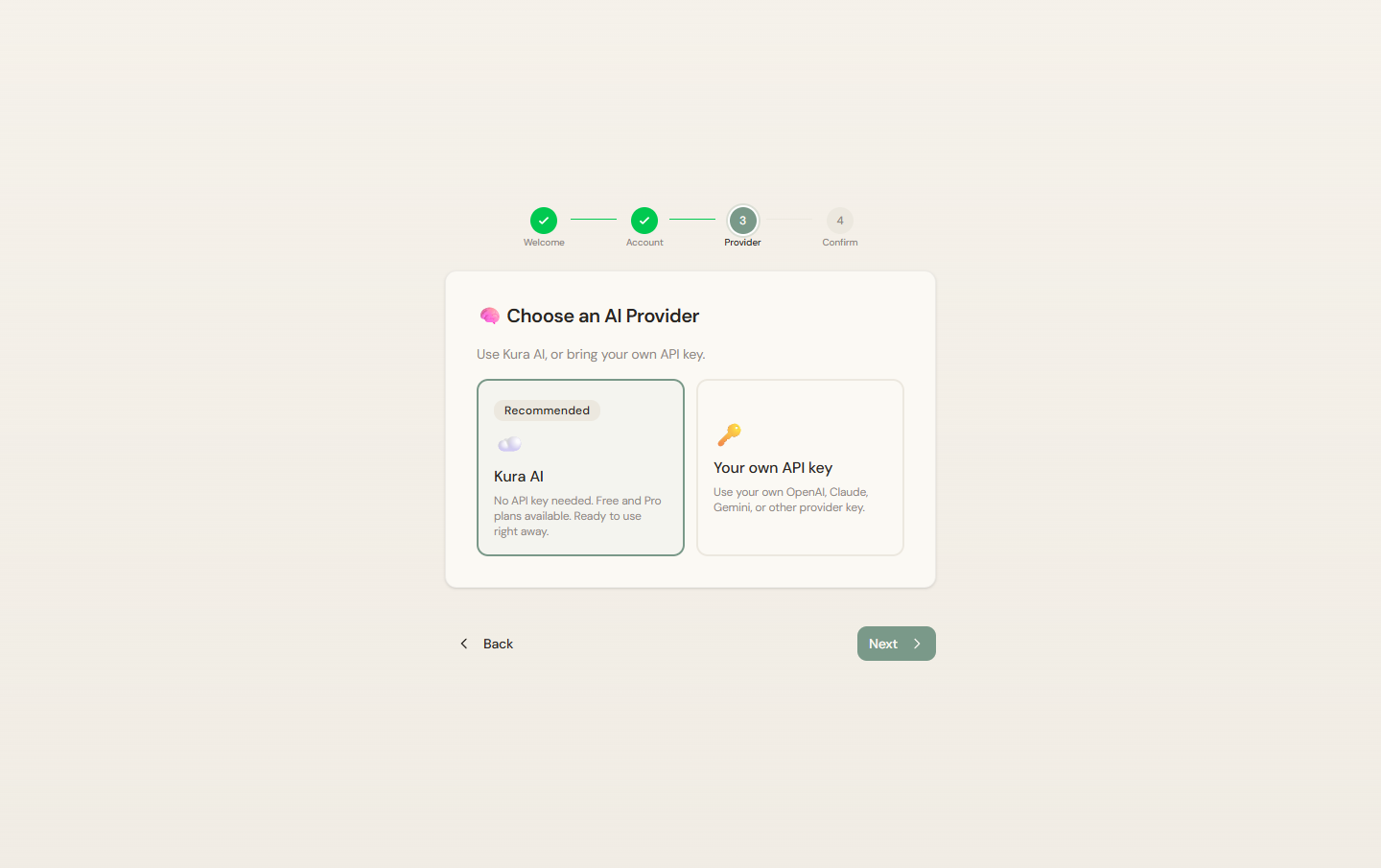
-
Confirm: review your account, plan, and AI provider, and optionally give this device a name. Click
Start with these settingsto enter the Kura-chan app.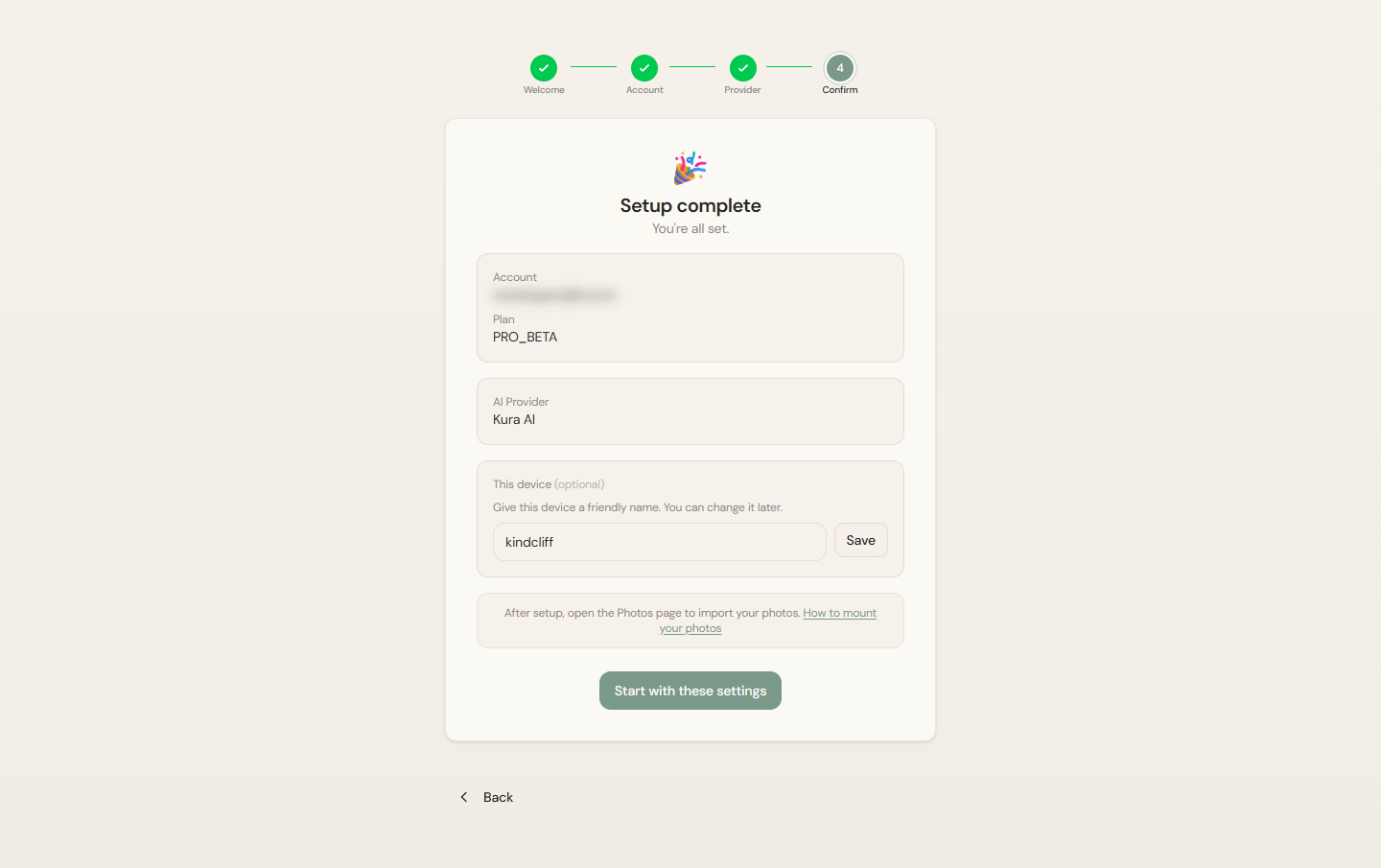
Connect LINE to start chatting
Section titled “Connect LINE to start chatting”Once setup is done, connect LINE so you can use Kura-chan in chat without opening the Kura-chan app.
-
Click the sections menu in the top-left corner, choose
Settings, and openAI Chat. -
In
Chat channels, clickLINE→Generate QR code, scan it with LINE on your phone, and tap send in the chat that opens. -
✅ Connected to LINEmeans you’re done.
For the full steps (scan screenshot, fallback connection method, and support for multiple accounts), see Connect LINE.
Next steps
Section titled “Next steps”Continue with Chat with Kura-chan — see how to capture receipts, search photos, and book schedules right from LINE.
When you need it: Kura-chan app reference