
Kura-chan app: Photos
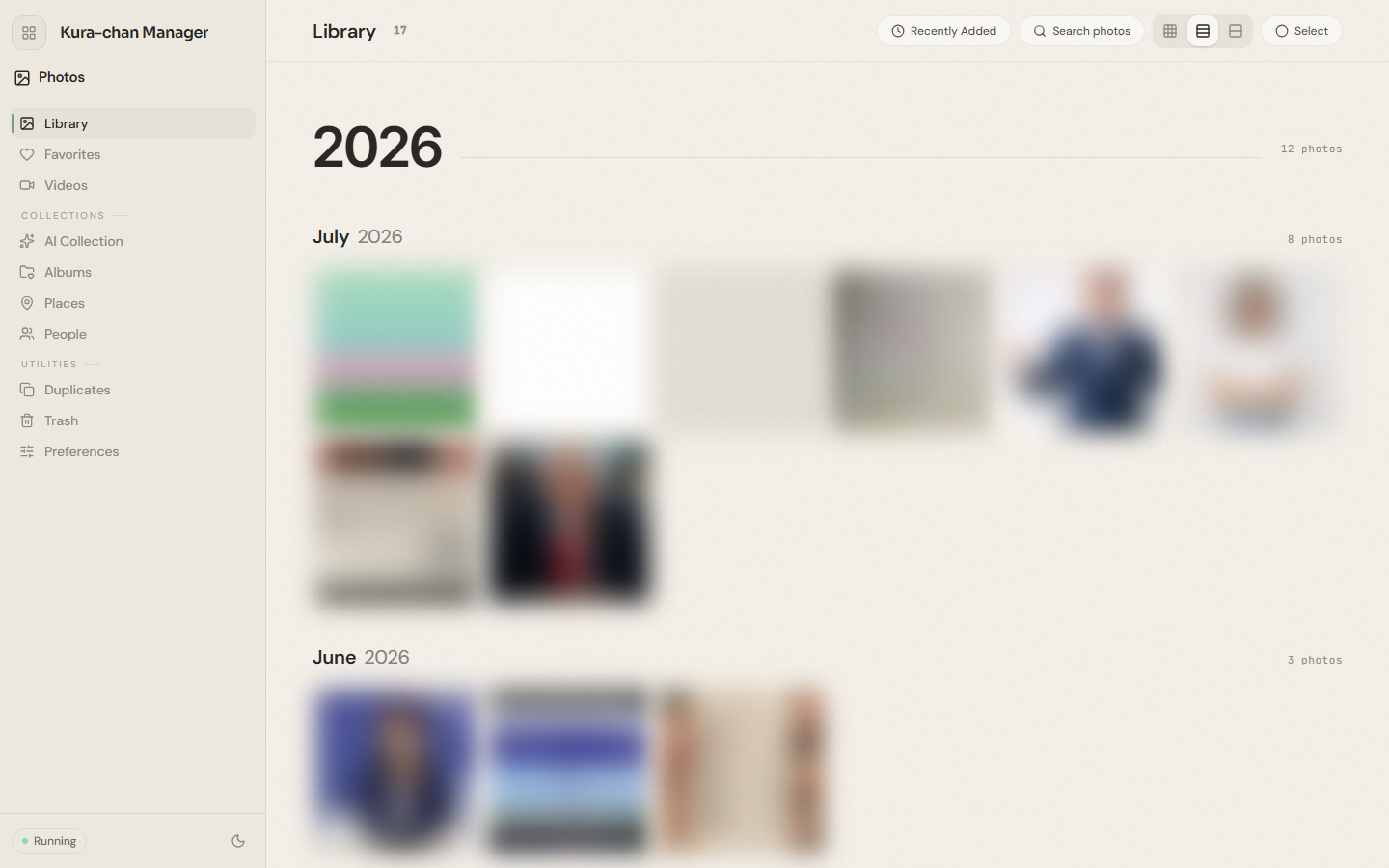
The Photos section is where you browse and organize the photos and videos Kura-chan can read. The left sidebar is split into three groups: Library, Favorites, Videos; AI collections, Albums, Places, People; and the utilities Disliked, Duplicates, Trash, Preferences.
Library is the default entry point and shows all photos newest-first.
Browse and view
Section titled “Browse and view”-
Click the sections menu in the top-left corner and choose
Photos; it opensLibraryby default. -
Scroll to browse by time. Switch the grid density in the top-right, or click
Recently addedto sort by import time. -
Click any photo to open it full-screen. Move between photos, view info, and let videos and live photos auto-play according to your
Preferences.
Favorite, add to album, and delete
Section titled “Favorite, add to album, and delete”-
Click
Selectin the top-right to enter multi-select mode. -
Select one or more photos. An action bar appears at the bottom:
Favorite,Dislike,Add to album,Delete,Cancel. -
Choose an action.
Deletemoves photos to the Trash; it does not delete them permanently right away.
Create with photos or hide them
Section titled “Create with photos or hide them”- Disliked photos: hide photos while keeping their files and restore them when needed.
- Collages and movies: create with 2–9 photos, then save, download or receive your work in LINE.
- Suggested albums: preview a suggestion and save it as a regular album.
Next steps
Section titled “Next steps”- To find photos with a phrase, read Search photos.
- On first use, open Preferences to confirm your photo source and prepare photos for AI search.
- To organize by theme, person, or place, continue with AI collections, Albums, People, and Places.